How to Make an AI Comic Book on iPhone
An AI comic book maker can help turn an original scene into illustrated pages. Manga Gen is an iPhone and iPad comic creator: write a story prompt, add personas, choose a style and page count, then review and export your generated comic.
Published October 21, 2026 · This walkthrough describes Manga Gen’s current creation flow. App Store screenshots below are examples from the public listing.
Plan a short comic before you generate
Start with a beginning, a change, and a final beat. For example, a courier arrives at a quiet harbor with a package that is already wet. A lighthouse keeper recognizes the sender’s name. When the bell rings, they find a second package on the empty dock. Those three beats suggest a comic story while leaving room for the next episode.
Keep your first story focused on one setting and a few characters. A short scene is easier to check for pacing, dialogue, and visual continuity than a whole novel compressed into one prompt.
Add the characters and describe the action
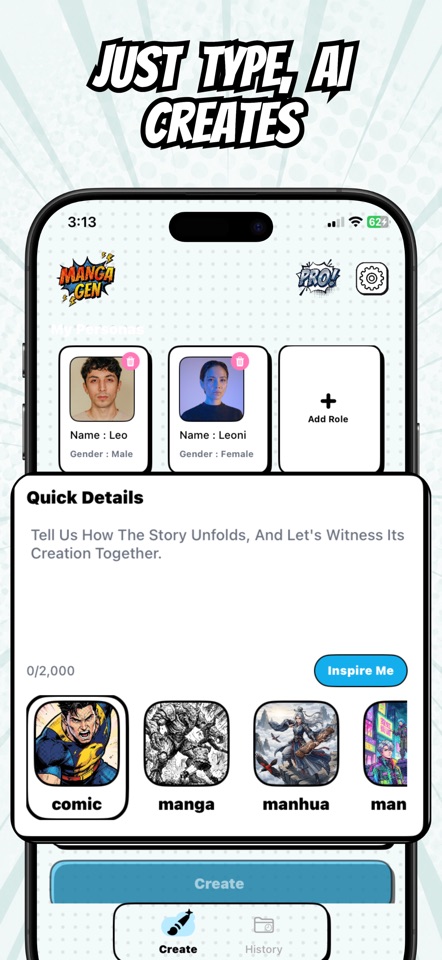
In Manga Gen, add personas for characters who matter in the scene. In Quick Details, explain what happens, what the reader needs to understand, and the image or reveal that should end the episode. Use names consistently. Concrete actions such as “slides the parcel across the counter” give the scene a clearer visual direction than a long list of adjectives.
At a quiet harbor after a storm, courier Mina delivers a dry parcel to lighthouse keeper Jun. Jun recognizes the sender but says nothing. Show Mina noticing a fresh wet footprint on the dry floor, Jun turning toward the lighthouse stairs, and the two hearing the warning bell. End with a second parcel on the empty dock. Keep the dialogue brief and the mood mysterious.
Set your comic’s visual style and length
Choose the style that fits the story: Manga Gen includes comic, manga, manhua, manhwa, and seinen options. Set the language and page count in the app. The selected count controls how many pages the episode generates; the story description still needs to communicate the sequence you want.
If you want a colored superhero story, choose comic style and describe the action. For a quiet, dramatic scene, manga or seinen might fit the mood you have in mind. Style names are creative directions in the app, not a promise that the generated result will follow every convention.
Review the pages like a comic creator
After generation, read the pages in order. Check that the main action is understandable, the characters are recognizable, and the ending gives the episode a clear stopping point. AI generated images or lettering may include mistakes, and character details can vary between results.
- Story feels crowded: remove a subplot and focus on one problem.
- Pages jump between events: name the actions in order in the prompt.
- Dialogue is hard to read: shorten the lines and reduce the number of speakers.
- The ending is weak: specify the final visual beat you want the reader to see.
Generation uses credits. Review the cost and balance shown in the app before creating another version. You can revisit comics in your library and use the available reader and editing tools to review your pages.
Export and share the comic book
When you are ready, export the comic from the app as a PDF or share it using the available share options. The result is useful for keeping a draft, showing an original story to a friend, or collecting several scenes into one file.
If you want to develop a series, write the next episode from the previous ending. Restate the cast and important setting details in each new prompt, then use the same saved personas to guide the characters. For more about the process, see how to create manga from a story prompt and browse the manga story prompt examples.